Last week, Anthropic released the most powerful set of new features for Claude to date.
If you’re new to Claude, instead of going through the learning curve yourself, use this guide to skip the learning process, achieve results directly, and boost your productivity immediately.
Even if you’ve been using Claude for a while, I bet you can still gain new insights from this guide.
Introduction to Claude
In simple terms, Claude can be seen as an AI that can truly “get the job done”.
Its expression is very human-like, capable of understanding subtle contexts. More importantly:
The Anthropic team has equipped Claude with a complete set of tools that enable it to genuinely “execute tasks”.
Many AI tools just tell you how to do something, while Claude will actually help you get it done.
Before diving into the specific operations of this guide, you need to create a Claude account.
I personally recommend opting for the paid plan, but that depends on you.
Here are the pricing options:
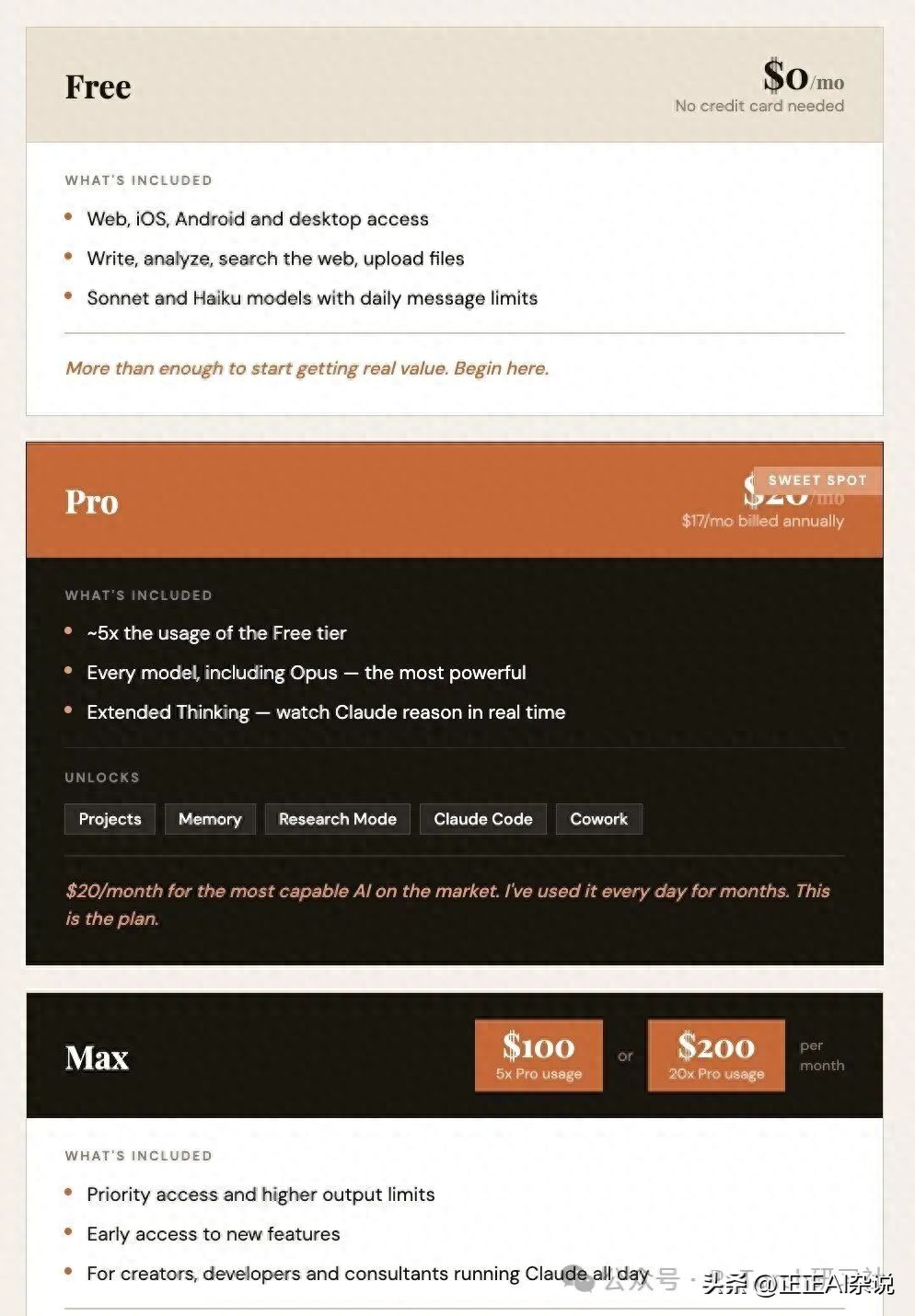
Once you create your Claude account, you will see an interface like this:
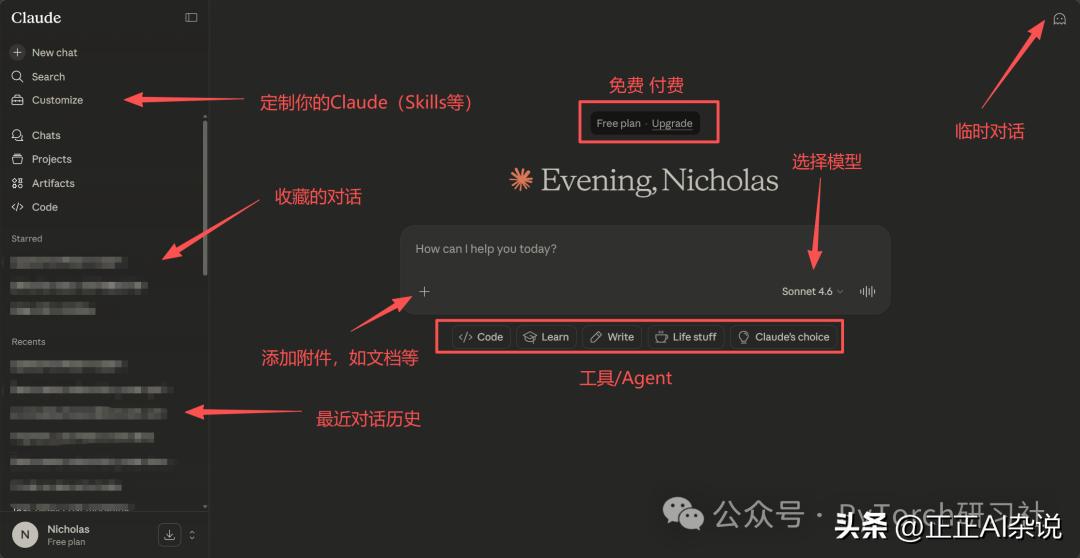
If you are a complete beginner with Claude, it’s advisable to screenshot this interface for quick reference later on.
Prompt Engineering Masterclass & Context Management
Garbage in (Prompt) = Garbage out (Answer).
Among all AI tools, poorly written prompts are the most common mistake I see, bar none.
Learning Prompt Engineering is highly beneficial for you because it can:
- Save tokens (reduce costs/usage)
- Save time (reduce repeated questioning)
Fortunately, Anthropic has clearly informed us how to ask Claude to get top-quality answers.
Claude’s prompt structure mainly consists of two effective ways:
- Beginner Structure
- Advanced Structure
If you’re a beginner, you can start with the three-part prompt method.
A powerful Claude prompt typically includes three core components. When combined, the output will transform from generic to truly useful results.
1. Set the Stage
Specify your role and goals.
Before making requests, provide Claude with enough contextual information.
Example:
“I am building a website for a marketing landing page aimed at Gen Z users.”
2. Define the Task
Tell Claude what specific action you want it to perform.
Be direct, clear, and specific.
Example:
“Write a competitive marketing copy and design the [xyz] section of the page.”
3. Specify the Rules
Define the output’s:
- Format
- Tone
- Length
- Style
Clearly tell Claude how you want the results presented.
Example:
“Keep it under 500 words.”
If you build prompts according to these three components, your output quality will exceed that of 90% of users.
If you’ve been using Claude for a while and want to further enhance your prompt skills, you can directly use the Advanced 10-Step Prompting Structure proposed by Anthropic.
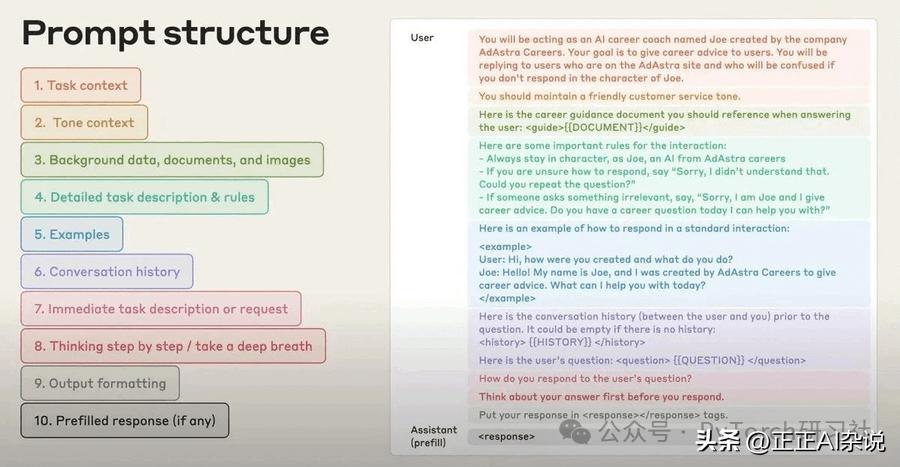
If you’re interested in systematically learning prompt engineering, you can refer to the prompt engineering tutorial collection.
To achieve high-quality output, you must manage your context window correctly.
Here are some practical tips:
- If the conversation becomes lengthy (and Claude starts to slow down), you can directly tell Claude: “compact the conversation and start a new chat.”
- Add files at appropriate times (refer to the previously noted interface), so Claude can read documents directly as context.
- Limit outputs in your prompts, for example:
- Use under 500 words
- Express in concise bullet points
- Use short answers
If you’re a newcomer to Claude, just focus on four things:
- Provide Claude with enough background information
- Clearly state the task
- Set the rules
- Upload relevant files as context when necessary
Model Selection
Now that you’re familiar with Claude and know how to communicate with it, the next key question is: Which model should you use? And when?
- Claude Sonnet 4.6: Daily main model
- Features:
- Fast
- Powerful
- Cost-efficient
- Suitable for:
- Writing
- Analysis
- Brainstorming
- Daily tasks
- Features:
Sonnet can handle almost everything. It is recommended that 80% of conversations should take place in Sonnet.
- Claude Opus 4.6: Deep thinking model
- Features:
- Claude’s most intelligent model
- Stronger deep reasoning capabilities
- Better at complex, multi-step problems
- Suitable for:
- Financial analysis
- In-depth research
- Complex programming
- Tasks requiring deep AI thinking
- Features:
You can also enable Extended Thinking: Claude will display its reasoning process before answering, as if verbalizing its thought process. * Drawbacks: * Slower * Consumes more quota
So do not use it for simple tasks.
- Claude Haiku 4.5: Speed model
- Features:
- Fastest
- Cheapest
- Suitable for:
- Quick information retrieval
- Simple classification tasks
- Light editing
- Features:
It is also available in the free version. You can think of models as a toolbox: you wouldn’t use a sledgehammer to hang a picture. Personally, I use Haiku in the Claude Chrome extension (which will be introduced below).
Basic Tools and Features
To truly empower Claude, you should set up some basic tools and features.
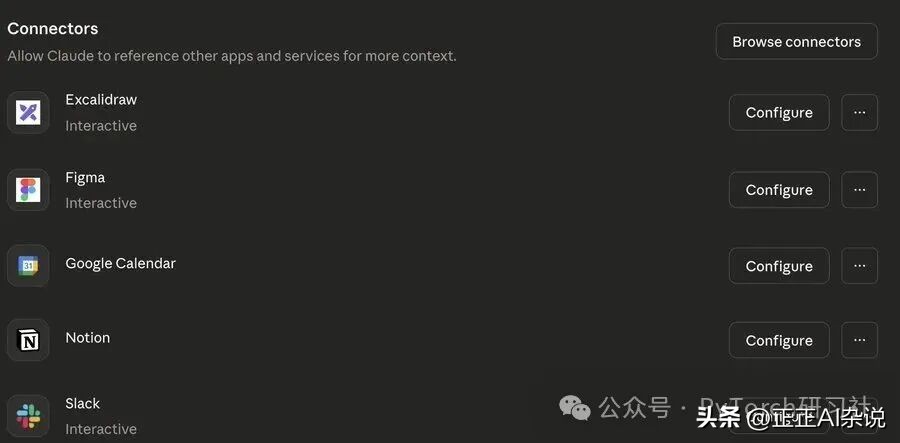
Connectors allow Claude to connect to your commonly used tools. The most frequently used connectors include:
- Notion
- Slack
- Google Calendar
Most people use these connection features daily.
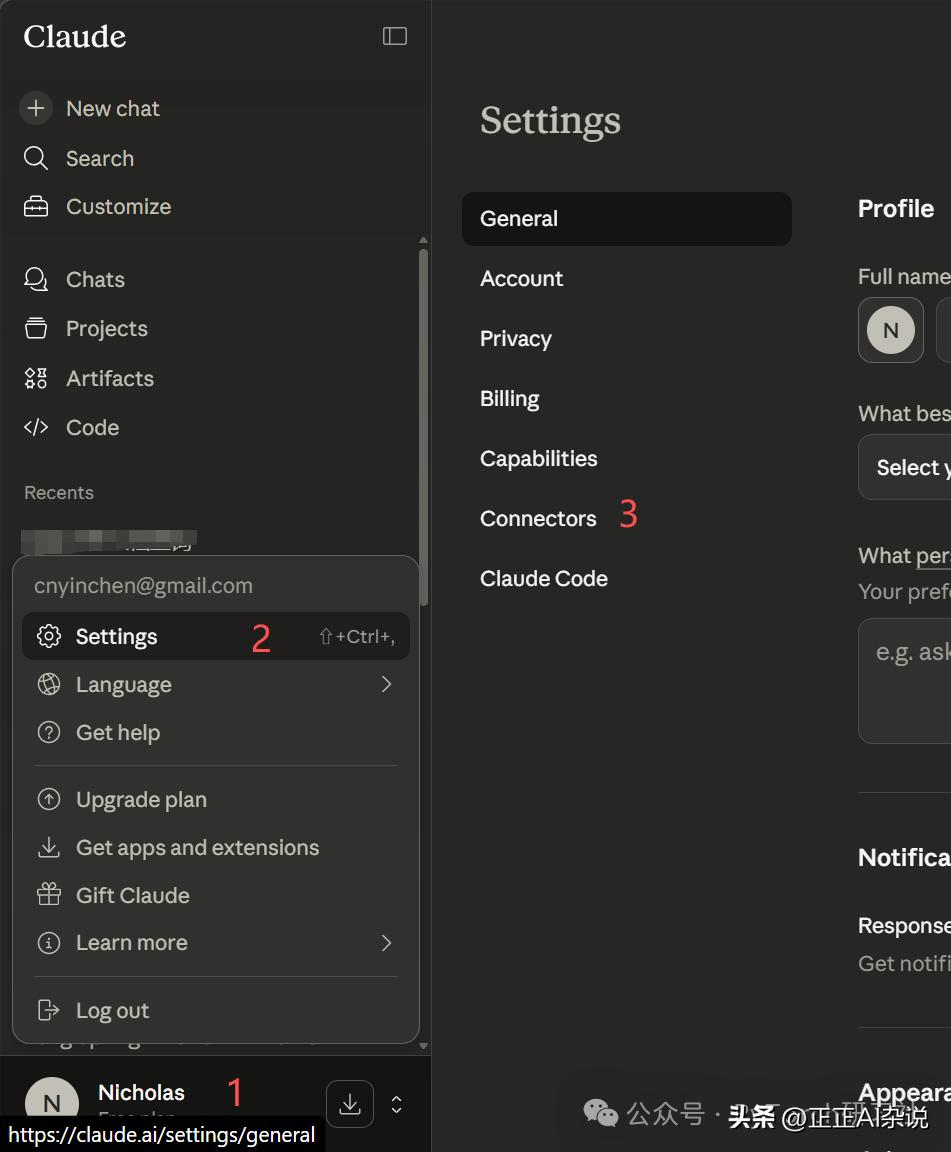
Most people are completely unaware of the existence of using Claude as a feature in Chrome.
You can install Claude as a browser extension directly in Google Chrome. This way, Claude can stay in your browser for easy access. You can download this extension here: https://chromewebstore.google.com/publisher/anthropic/u308d63ea0533efcf7ba778ad42da7390

In the main interface, you can choose “Use Style”. This feature allows us to:
- Select preset writing styles
- Or create custom styles
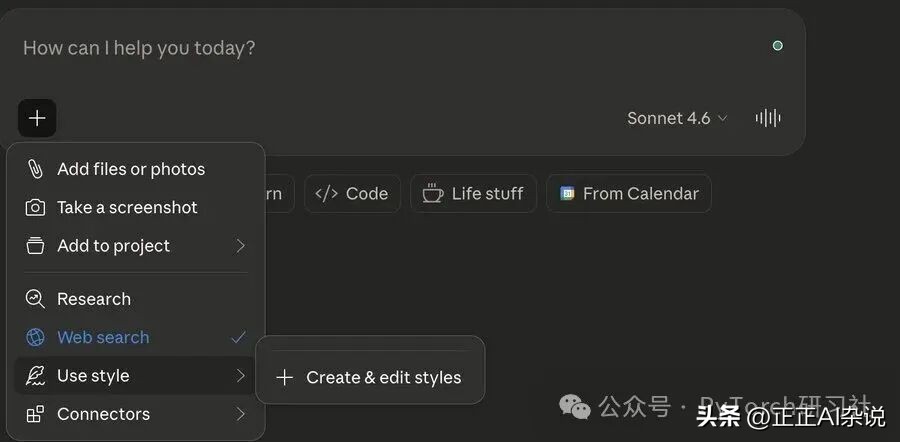
This way, you can adjust and control some writing elements of Claude’s output, such as:
- Tone (formal/casual)
- Expression style
- Writing structure
- Style preferences
With this feature, you can make Claude’s responses more aligned with your personal writing habits or work needs.
Projects are your dedicated workspace in Claude. You can:
- Upload your files, documents, and resources all at once
- Then engage in any number of conversations within that project

All conversations will share the same set of contextual information. This means that when you start a new chat within the project, Claude already knows all the background information. In simple terms:
- Set it up once
- Every conversation in the project will automatically understand your goals and background.
Research Mode
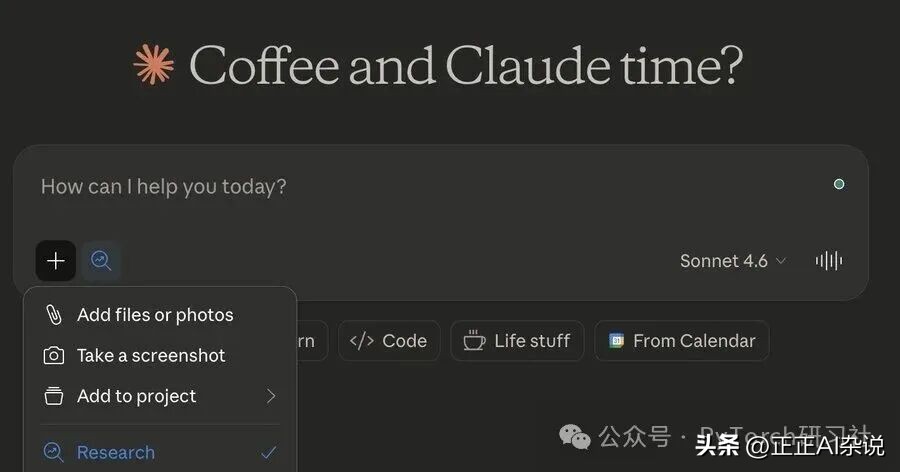
Research Mode is one of my favorite features. In Claude’s Research Mode, you only need to ask a question. Unlike the normal mode, it won’t answer immediately but will conduct in-depth research:
- First, break down your question
- Then search dozens or even hundreds of information sources
- Cross-validate the information
- Finally, compile a complete research report with citations
Depending on the complexity of the question, the entire process typically takes 5 to 45 minutes.
Lastly, there’s the Claude application. If you want to use the advanced tools mentioned in the next section, you need to download the dedicated Claude app. You can find download and installation instructions here: https://support.claude.com/en/articles/10065433-installing-claude-desktop
Advanced Tools: Claude Code, Cowork, and More
Now we enter the heavyweight tool section. These tools will truly change the way you work.
Claude Cowork
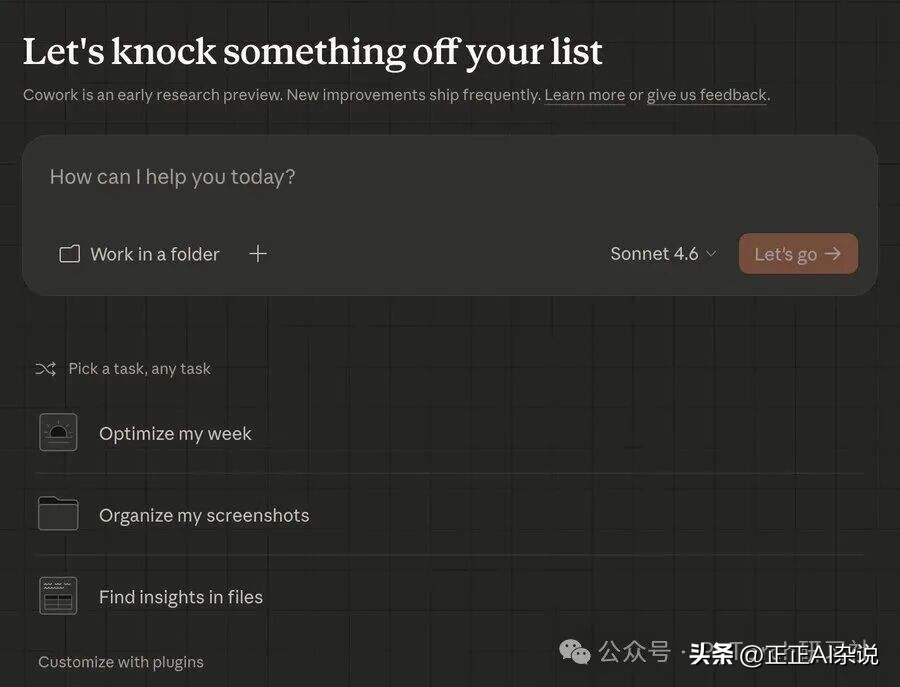
Claude Cowork is only available in the Claude app (not accessible via the web version). It allows Claude to access files and autonomously execute tasks in the background.
You can:
- Schedule tasks
- Create plug-ins (which will be detailed below)
- Watch Claude execute complex tasks
This feature makes Claude not just a “response tool” but an assistant capable of autonomously completing work within the parameters you set.
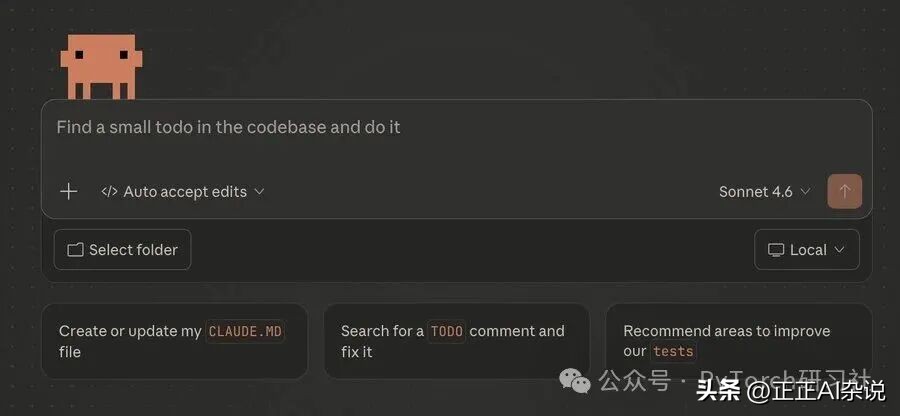
Claude Code
Claude Code is the most powerful AI programming tool on the market. It can help you:
- Write code
- Build websites
- Handle errors
- Almost any programming-related task
Claude Code falls under advanced tools. If you’re a programmer and haven’t started using it yet, now is the time to try.
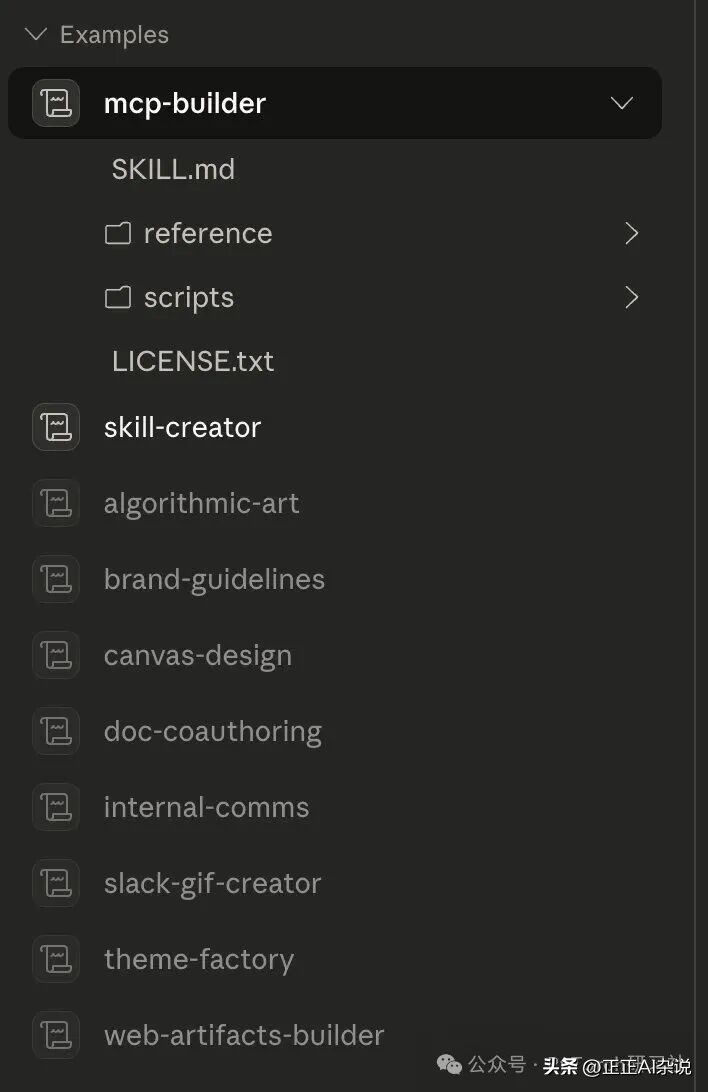
You can think of Claude Skills as reusable instructions and workflows. This means you don’t have to input the same prompts every time; Claude already knows what to do.
Suppose you need to analyze spreadsheet data every day.
- Normal way: You would have to re-enter prompts each time, such as:
- “Analyze this spreadsheet and look for XYZ.”
- Using Skill: You would just input:
- “Use my Spreadsheet Analyzer Skill.”
Claude will automatically execute the same process according to your request, consistently every time.
The best part is: Claude can help you create these Skills; you just need to tell it:
“Help me create a Skill for [insert workflow].”
You can easily generate reusable workflows.
Path: Main interface → Customize → Skills
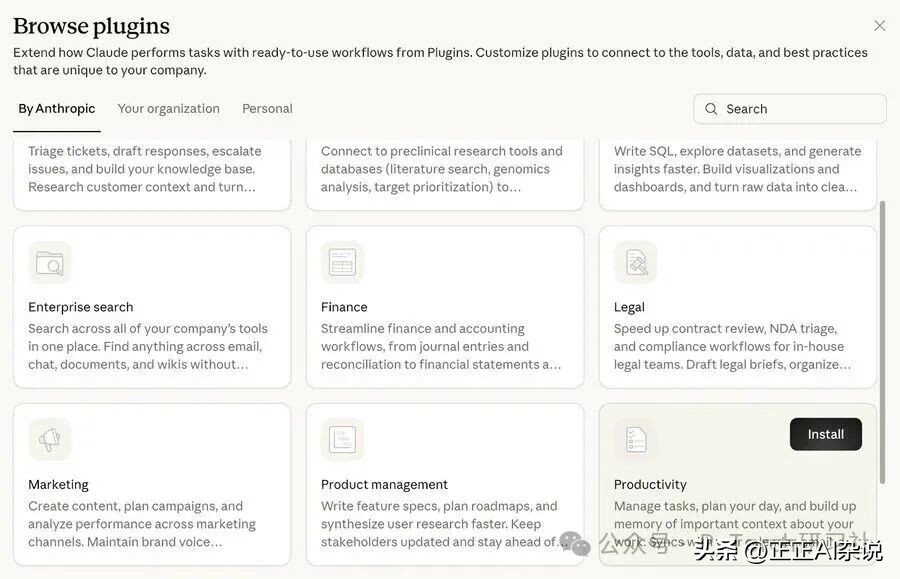
Cowork plug-ins can be thought of as employee roles.
- Skill: Handles single, repeatable tasks: one prompt, one workflow, or a set of instructions.
- Plug-in: Combines multiple skills to automate the entire role’s work.
Suppose you are running an electronic newsletter:
- You can install a Content Writer Plug-in.
- The plug-in will:
- Familiarize itself with your brand tone
- Format each piece of content correctly
- Automatically integrate relevant news
- Output a draft ready for publication
This way, you don’t need to retrain Claude from scratch each time; the entire role is already defined.
Currently, Anthropic has developed several plug-ins available for use, covering areas including:
- Legal
- Marketing
- Finance
- And more industries
Path: Cowork → Customize → Plug-ins
Comments
Discussion is powered by Giscus (GitHub Discussions). Add
repo,repoID,category, andcategoryIDunder[params.comments.giscus]inhugo.tomlusing the values from the Giscus setup tool.