What Problem Does It Solve?
Many readers have recently asked how to use Claude Code, but their questions are basic—installation, login, and how to get it to write code for them. These details are clearly outlined in the official documentation, so why the confusion?
The issue isn’t that people can’t read the documentation; rather, they don’t know how to apply it. It’s like having a Swiss Army knife—you know it can open cans, peel apples, and screw in screws, but you don’t know when to use each function.
In this article, I’ll share my three months of in-depth experience using Claude Code, covering everything from installation to advanced usage. The focus is not on explaining “what it is” but rather on “how to use it.”
What Is Claude Code?
Before diving into usage, let’s clarify what Claude Code is for those unfamiliar.
Claude Code is an AI programming assistant developed by Anthropic (the creators of Claude). You can think of it as a super programmer living in your terminal.
The main difference between Claude Code and Copilot is:
- Copilot: Suggests how to write code while you’re coding.
- Claude Code: You tell it what functionality you need, and it handles everything for you.
In simpler terms, Copilot hands you the wrench, while Claude Code fixes the car for you.
What Can It Do?
- Read and write files, create projects
- Analyze code and find bugs
- Execute terminal commands
- Run tests and deploy code
- Help you understand unfamiliar projects
- Assist in writing test cases and documentation
- Even perform code reviews
In short, it can do almost anything you can do with a keyboard and mouse.
Installation and Configuration: Get Started in 10 Minutes
Pre-installation Preparation
Before installing Claude Code, you need two things:
-
Node.js Environment
Claude Code is installed via npm, so you need to install Node.js first. Visit Node.js official site to download and install. After installation, verify in the terminal:node --version npm --version -
Anthropic API Key
This key is your credential to access Claude’s capabilities, similar to your ID.
Go to Anthropic Console to register and create an API Key.
Important: This key is like your account password—never share it or upload it to GitHub! Many have lost hundreds of dollars due to this mistake.
Installation Steps
-
Install Claude Code
npm install -g @anthropic-ai/claude-code -
Verify Installation
claude --versionIf you see the version number, the installation was successful.
-
Configure API Key
There are two ways to do this:- Environment Variable (Recommended)
Add the following to~/.bashrcor~/.zshrc:Then reload the configuration:export ANTHROPIC_API_KEY='yourAPIKey'source ~/.bashrc # for bash source ~/.zshrc # for zsh - Login Authentication
Simply run:It will guide you through the authentication process.claude login
- Environment Variable (Recommended)
Common Installation Issues
Q: npm install reports insufficient permissions
Try using sudo:
sudo npm install -g @anthropic-ai/claude-code
Q: claude: command not found
Check if npm’s global bin directory is in your PATH:
npm config get prefix
If it shows /usr/local, it should be in your PATH. If not, add that path to your PATH.
First Use: Starting with “Hello World”
After installation, let’s give it a test run.
Starting Claude Code
In the terminal, simply type:
claude
You will see an interface like this:
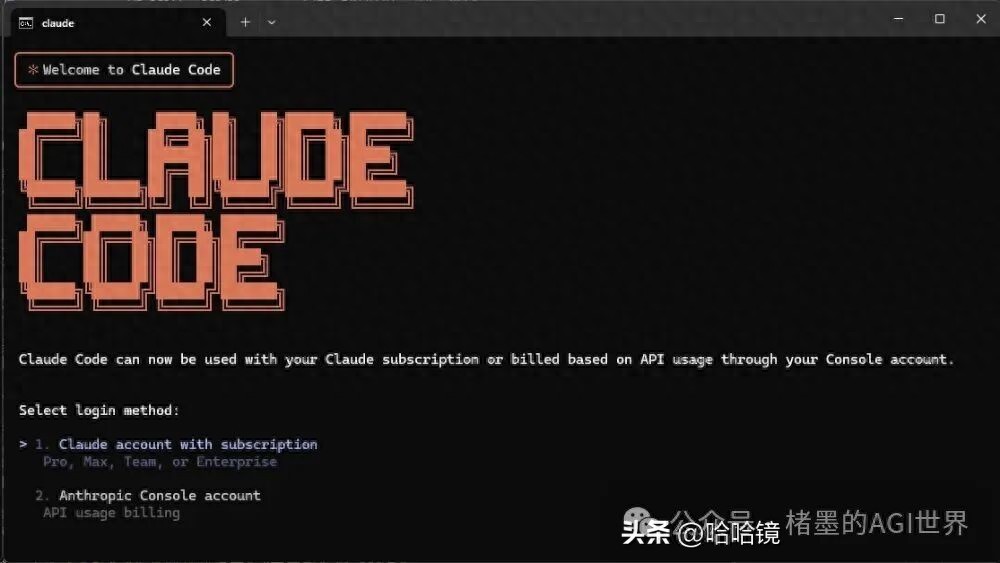
Usage: claude [command] [options]
Welcome to Claude Code! Type /help for available commands.
Your First Task: Create a Project
Let’s start with a simple task—ask it to create an HTML file.
In Claude Code, type:
Help me create an index.html file that displays "Hello World" in the center.
It will think for a moment and ask for confirmation. Type y to confirm.
You will find an index.html file in the current directory, containing something like this:
Hello World
This demonstrates Claude Code’s basic capability—you tell it what to do, and it does it.
Core Tools Explained: The Right Way to Use It
Many users struggle with Claude Code because they don’t know its tools. Let me clarify each one.
Read — Reading Files
Basic usage:
/read index.html
This will display the complete contents of the file.
Advanced usage—read specific lines:
/read index.html:1-20
This reads only lines 1 to 20.
Why is this useful?
When you take over a new project and want to understand a file’s structure, this command is perfect:
/read src/utils/helper.ts
Edit — Modifying Files
This is the most commonly used tool, more precise than Write.
Usage: You need to tell it “change this part of the code to what”:
Change "Hello World" to "你好,世界"
Or more precisely:
Change line 15 of index.html from
Hello World
to
你好,世界
Note: Edit modifies precisely; it won’t overwrite the entire file, only the specified part.
Write — Writing to Files
Note: Write overwrites the file, clearing its entire contents.
If you only want to modify part of a file, use Edit for safety.
Write is suitable for:
- Creating new files
- Completely rewriting a file
Help me write a user.service.ts that includes methods for user registration and login.
Bash — Executing Commands
This showcases Claude Code’s power—it can execute commands directly in the terminal.
BLOCK mode (independent command):
Run npm install to install dependencies.
It will execute npm install for you.
INLINE mode (combined commands):
First create a directory, then enter it, and initialize the project.
It will combine multiple commands into one execution.
Important Reminder: Bash can execute any command, including dangerous ones like rm -rf. Always check what it’s about to do before executing!
Glob — Searching for Files
This tool is particularly useful when you forget where a file is located.
Search by name:
Help me find all .ts files in the project.
Search by pattern:
Help me find all test files in the src directory.
Grep — Searching Content
If Glob finds files, Grep finds content within files.
Basic usage:
Comments
Discussion is powered by Giscus (GitHub Discussions). Add
repo,repoID,category, andcategoryIDunder[params.comments.giscus]inhugo.tomlusing the values from the Giscus setup tool.